If you have any issues configuring this app, please advise your Site Administrator, or the Live Monitor support team by emailing CorvusLiveMonitor@intov8.com.au.
User Configuration and Navigation
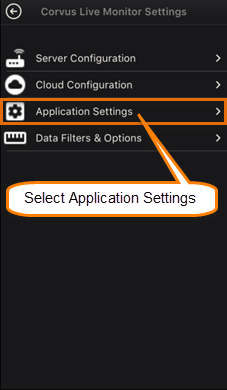
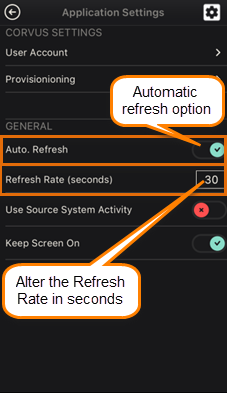
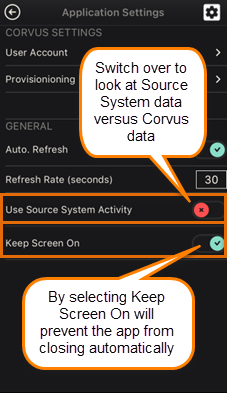
Application Settings
| Step1 | Step2 | Step3 |
|---|---|---|
 |
 |
 |
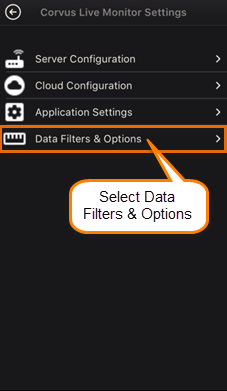
Data Filter and Options
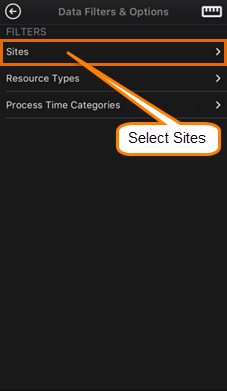
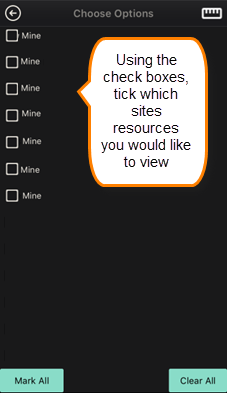
Sites
| Step1 | Step2 | Step3 |
|---|---|---|
 |
 |
 |
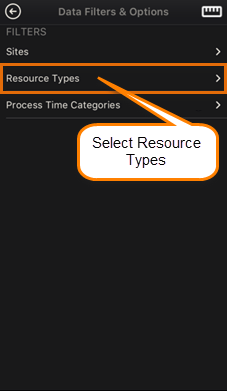
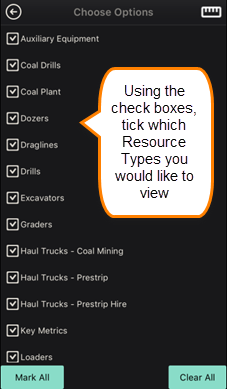
Resource Types
| Step1 | Step2 |
|---|---|
 |
 |
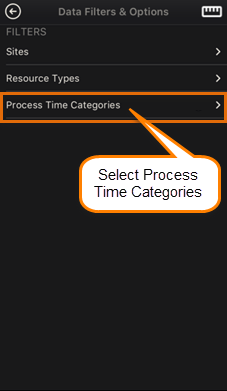
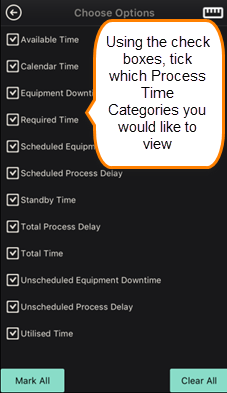
Process Time Categories
| Step1 | Step2 |
|---|---|
 |
 |
Live Monitor – Maps
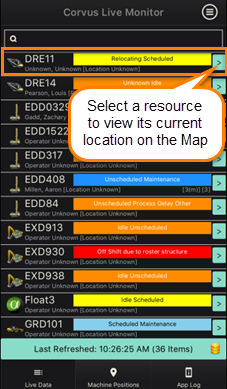
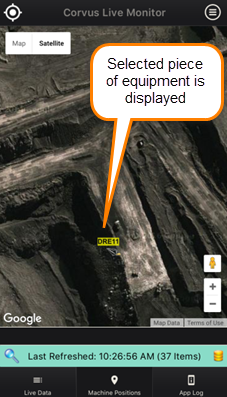
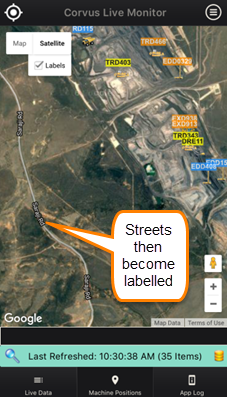
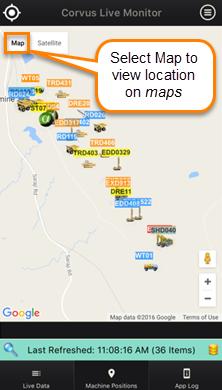
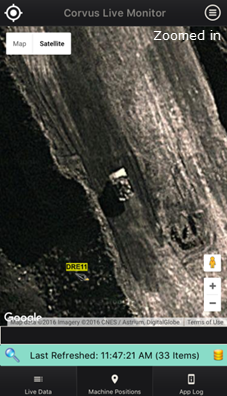
Once the above filters have been applied, revert back to the Corvus Live Monitor, Live Data Tab and the resources will appear based on your parameter selections. You will be able to view where a piece of equipment is currently located via Satellite Image Technology.
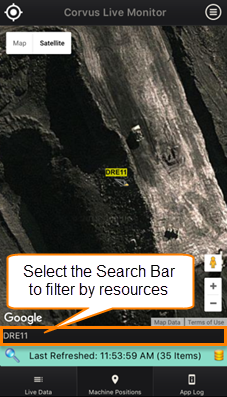
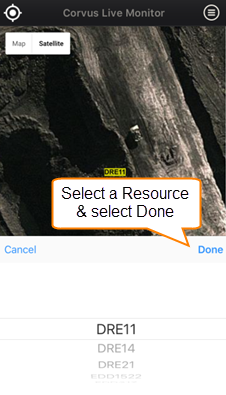
Navigating a Resource
| Step1 | Step2 |
|---|---|
 |
 |
| Step3 | Step4 |
 |
 |
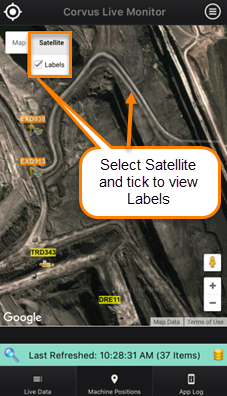
Satellite & Labels
| Step1 | Step2 |
|---|---|
 |
 |
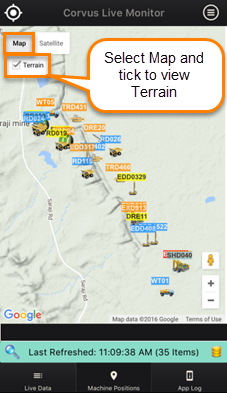
Maps & Terrain
| Step1 | Step2 |
|---|---|
 |
 |
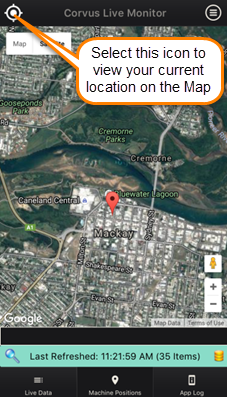
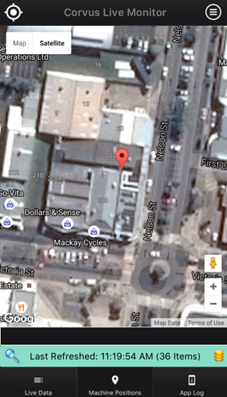
Your Current Location on the Map
| Step1 | Step2 |
|---|---|
 |
 |
Display Icons & Features
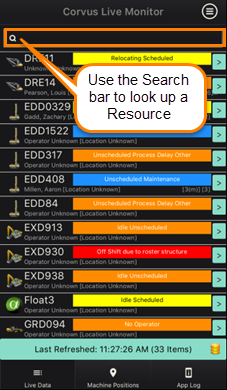
Search Bar
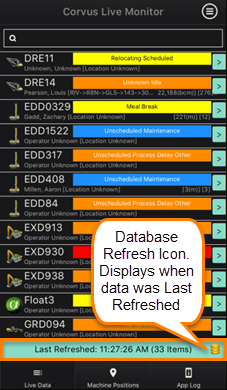
Database Refresh Icon
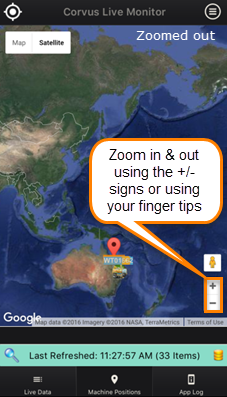
Zoom in and out using Maps
| Step1 | Step2 |
|---|---|
 |
 |
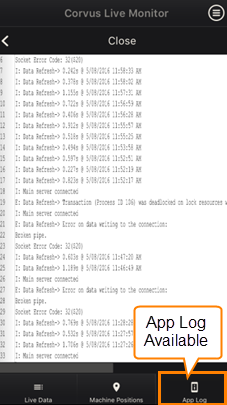
App Log